Writing10 min readRh Razu
AI Workflow Automation Examples Across Email and CRM
Five AI workflow automation examples across email, CRM, spreadsheets, documents and internal tools, mapped step by step with the failure path for each.
- Automate
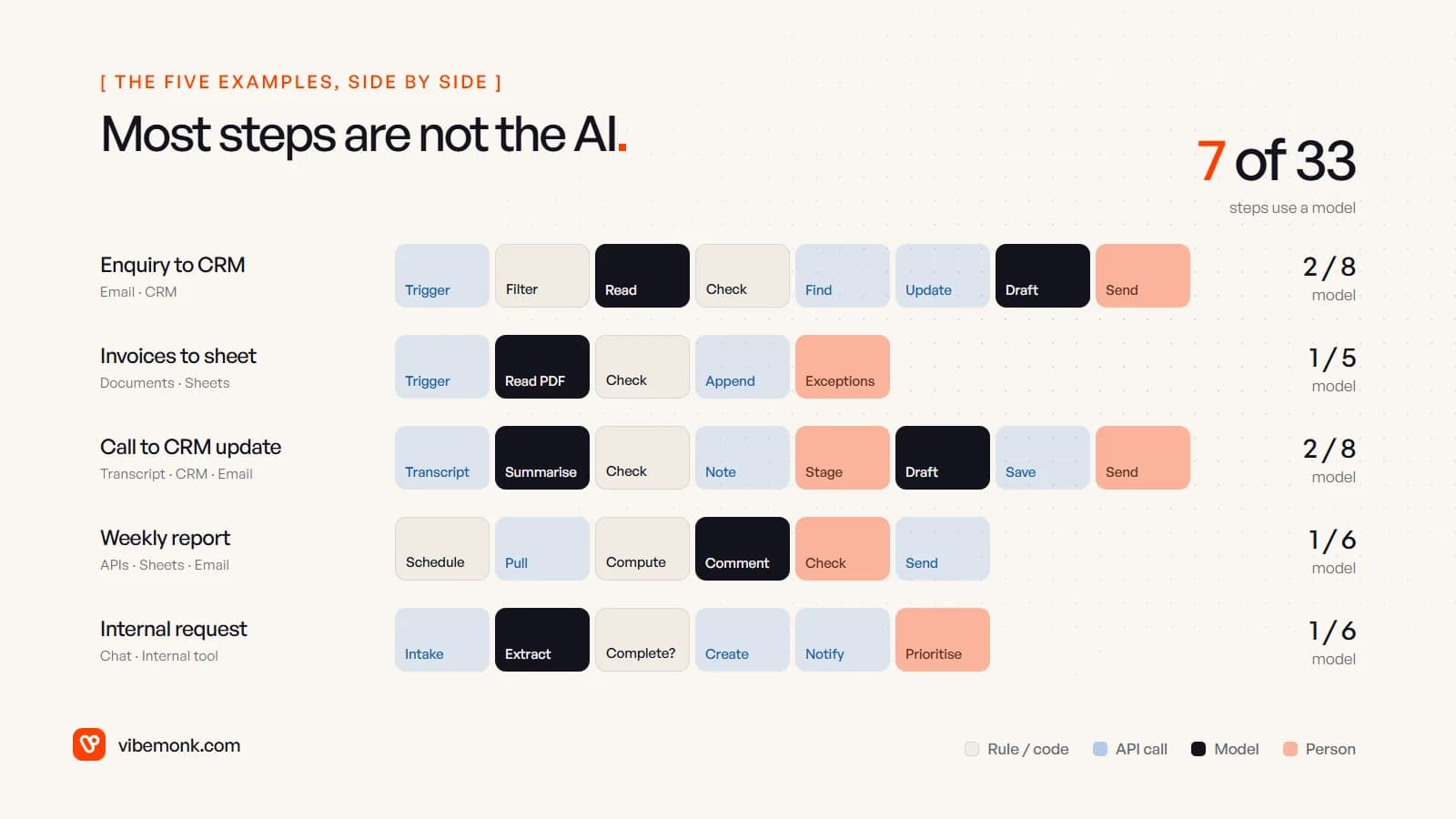
Most AI workflow automation examples online are one line long: "AI triages your inbox", "AI updates your CRM". That tells you what is possible, not how it runs. Below are five workflows across email, CRM, spreadsheets, documents and internal tools, each mapped step by step: what triggers it, which step a language model does, which steps are plain rules and API calls, where a person signs off, and what happens when a step fails. Across all five, the model does 7 of the 33 steps. That ratio is the useful lesson. The AI reads and drafts. Everything else is ordinary, testable plumbing.
How to read these examples
Every step below has one owner, and there are four kinds:
- Rule or code. Filters, checks, arithmetic, schedules. Same input, same result, every time.
- API call. Reading from or writing to a system: the inbox, the CRM, a spreadsheet, your internal tool.
- Model. A language model reading unstructured input into a fixed record, or drafting text.
- Person. Approving, sending, deciding, or handling the cases the checks rejected.
If you want the background on why the split matters, our guide to AI workflow automation covers the four kinds of automation and how they combine. The examples here are the applied version. They are worked examples, not client case studies, and the systems named (Gmail, HubSpot, Google Sheets) stand in for whatever you use. The same shape works with Outlook, Pipedrive or Excel.
Example 1: enquiry email to CRM record and first reply
A shared sales inbox gets enquiries. Today someone reads each one, checks whether the sender is already in the CRM, creates or updates the contact, decides who owns it and writes a reply.
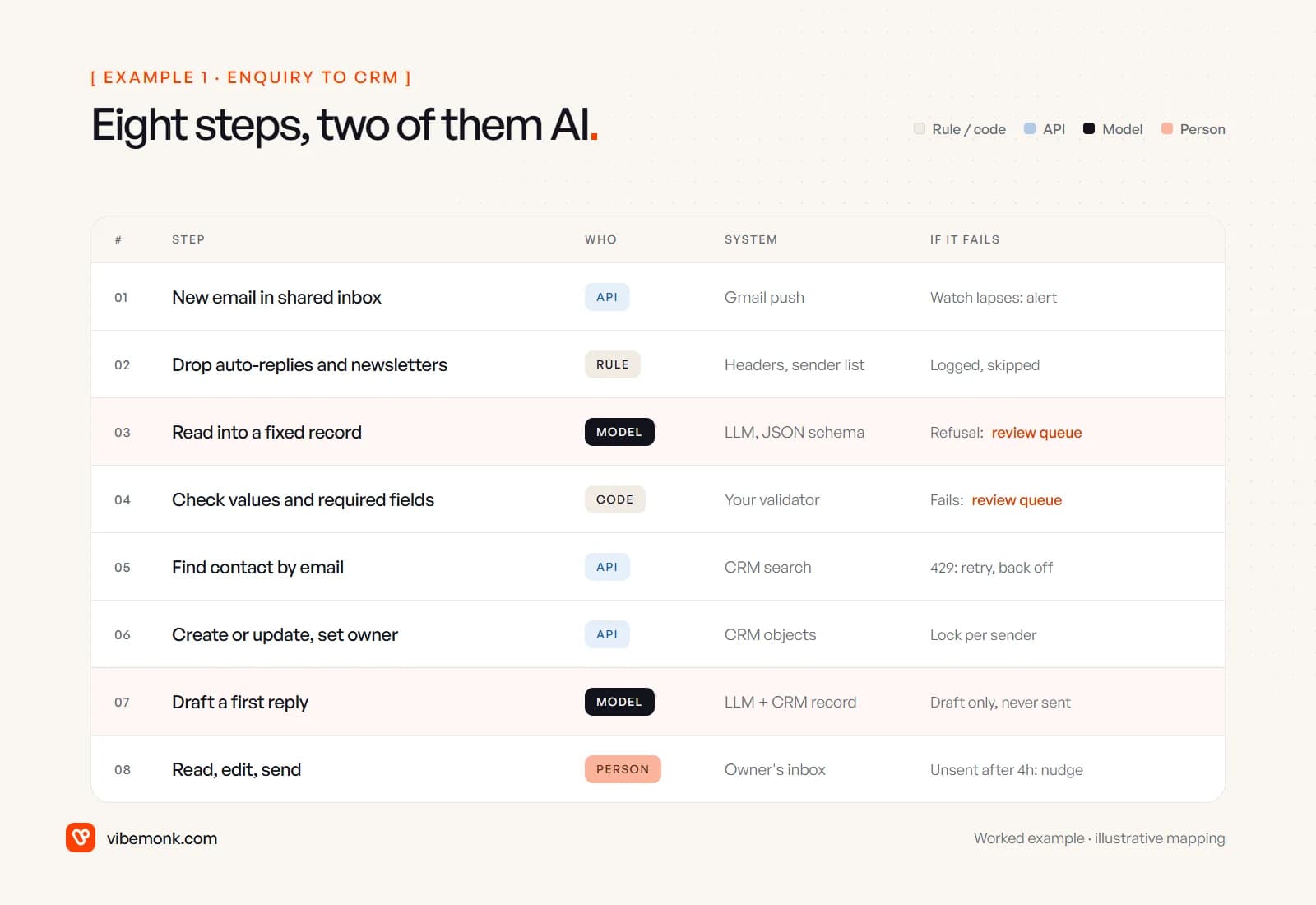
- New email arrives (API). With Gmail, a push notification fires through Cloud Pub/Sub. One detail that quietly breaks workflows: Google says you "must call the
watchmethod at least once every 7 days or you'll stop receiving updates", and recommends calling it daily (Gmail push notifications). Renew it on a schedule and alert if it lapses. - Drop noise (rule). Auto-replies, newsletters and bounces are filtered on headers and a sender list. No model needed.
- Read into a fixed record (model). The model returns name, company, what they want, urgency and a one-line summary, in a JSON schema you define. OpenAI's Structured Outputs "ensures the model will always generate responses that adhere to your supplied JSON Schema", but its docs also note that a refusal "does not necessarily follow the schema" (OpenAI docs). Handle that case explicitly.
- Check (code). Is urgency one of your allowed values? Is the email address present and valid? Failures go to a review queue, not into the CRM.
- Find the contact (API). Search the CRM by email address. HubSpot's search endpoints are "rate limited to five requests per second per account" (HubSpot CRM Search API), so a burst of emails needs retries with back-off.
- Create or update and assign an owner (API plus rule). The owner comes from a routing rule: territory, enquiry type, round robin.
- Draft a reply (model). The model drafts from the enquiry and the CRM record and saves it as a draft.
- Read, edit, send (person). The owner sends it. Nothing reaches the customer unseen.
The failure most write-ups miss sits at step 5. HubSpot's own docs warn that "it may take a few moments for newly created or updated CRM objects to appear in search results". If the same person sends two emails a minute apart, a naive workflow searches twice, finds nothing twice and creates two contacts. Process emails from the same sender one at a time, or keep your own record of addresses you have just created.
Example 2: supplier invoices from the inbox to a spreadsheet
Invoices arrive as PDF attachments, each laid out the way its supplier likes. Someone retypes supplier, invoice number, date, line items and total into a spreadsheet that finance works from.
- Attachment arrives (API). A watched inbox or a dedicated invoices address triggers the run.
- Read the PDF (model). On vision-capable models, OpenAI's API "extracts both text and page images and sends both to the model" (PDF inputs), which matters for scanned invoices and tables. The model returns supplier, invoice number, date, each line and the stated total.
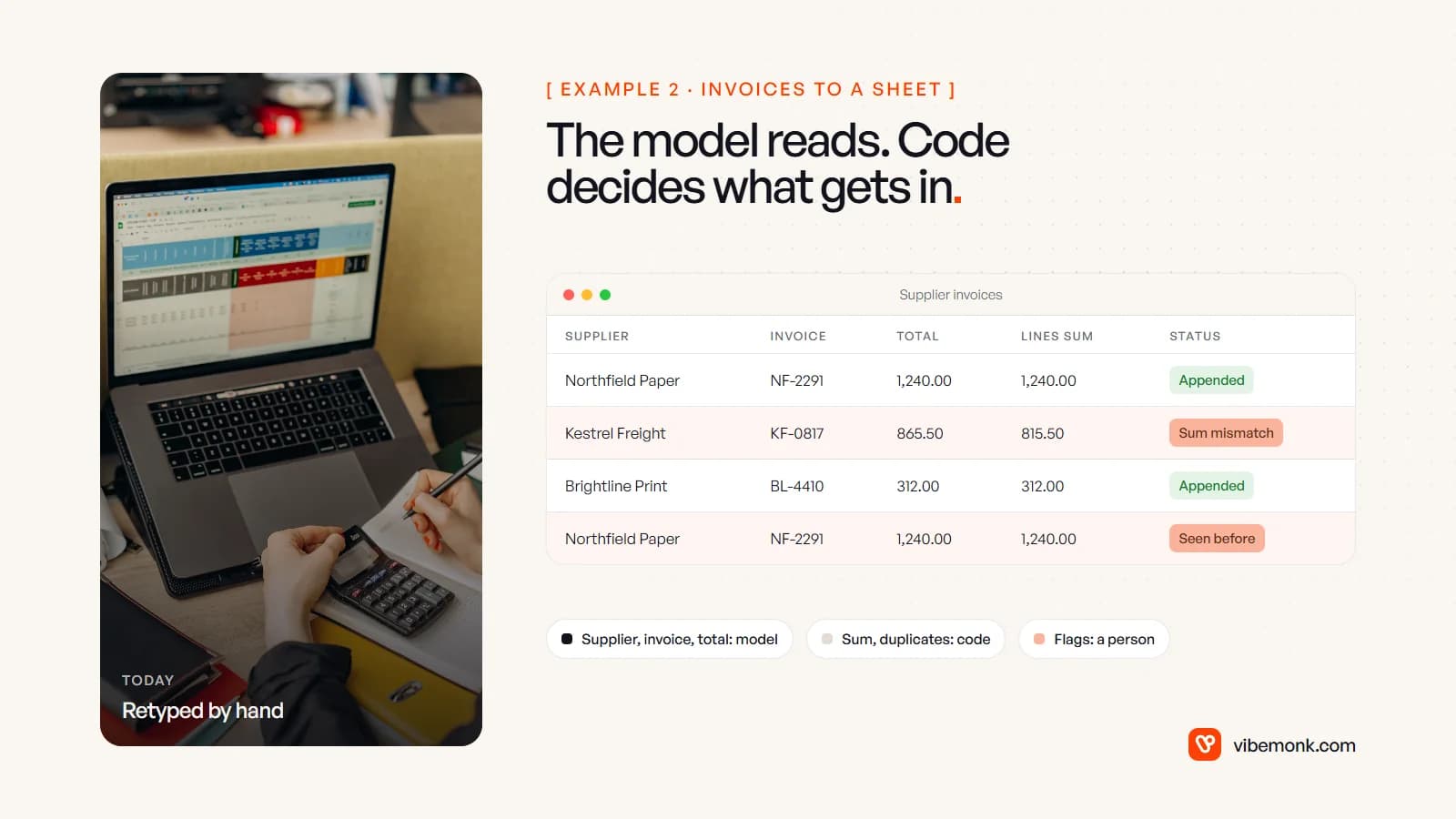
- Check (code). Do the lines add up to the total? Is this supplier known? Has this supplier and invoice number been seen before? These are the checks a model should never be trusted to do for you, and they cost nothing to run in code.
- Append the row (API). In Google Sheets,
spreadsheets.values.appendadds rows after the existing table. SetinsertDataOption=INSERT_ROWS; by default appended values can overwrite data below the table (Sheets API: values). - Exceptions (person). Mismatches and duplicates land on a review tab with the PDF linked. A person fixes or rejects them.
The model is good at reading a layout it has never seen. It is not a reliable judge of whether its own reading is right. A misread total looks exactly as clean as a correct one, so the arithmetic check in step 3 is what makes this safe enough to run unattended.
Example 3: sales call to CRM update and follow-up
After a call, the rep is meant to log notes, move the deal stage, set a next step and send a follow-up. It often happens late or not at all.
- Transcript arrives (API). Your meeting or call tool posts the transcript when the call ends.
- Summarise into fields (model). Agreed next step, date mentioned, objections raised, suggested stage, all in a fixed record with a short quote from the transcript as evidence for each.
- Check (code). The suggested stage must be one of your pipeline's stages and may only move one step forward. Dates must parse.
- Write the note (API). Summary and next step go onto the deal as a note. Notes are low risk, so this can run without approval.
- Confirm the stage change (person). Stage changes drive forecasts, so the rep confirms with one click.
- Draft the follow-up (model). Written from the summary and the deal record.
- Save as a draft (API). In the rep's own mailbox, not sent.
- Send (person).
The design choice here is where the line between steps 4 and 5 sits. Writing a note is reversible and harmless if slightly wrong. Moving a deal stage changes a forecast someone else relies on. Put approvals on the actions that are expensive to get wrong, not on every step, or people stop reading what they approve.
Example 4: weekly marketing report with commentary
This one sits closest to SEO and marketing work. Every Monday someone exports search and analytics data, pastes it into a sheet, works out what changed and writes a paragraph for the client or the team.
- Schedule (rule). A timer runs Monday morning.
- Pull the data (API). For organic search, the Search Console API's
searchAnalytics.queryreturns clicks, impressions and positions by query, page or date (Search Console API). - Compute the changes (code). Week-over-week differences, biggest movers, pages that dropped out. All arithmetic, all in code.
- Write the commentary (model). The model gets the computed table, not the raw export, and writes two short paragraphs on what moved.
- Check (person). Someone reads it against the numbers before it goes out.
- Send (API). The email or the client portal update goes out.
Two things go wrong here. The first is letting the model do the maths: it will produce confident percentages that do not match the sheet. Compute every number in code and tell the model to use only those. The second is a data trap. Search Console's API returns 1,000 rows by default, up to 25,000 per request, and Google notes it "does not guarantee to return all data rows but rather top ones". Rows broken down by query will not add up to your site total, so take totals from a separate query with no breakdown rather than summing rows.
Example 5: internal request from chat to a tracked task
Requests arrive as chat messages: "can someone update the pricing page", "laptop for the new starter on Monday". Half of them miss the information needed to act, and they get lost in the scroll.
- Intake (API). A message in a requests channel, or a short form, triggers the run.
- Extract fields (model). Category, what is needed, by when, for whom.
- Complete? (rule). If a required field for that category is missing, the workflow replies in the thread asking for it, and waits.
- Create the record (API). A task in your project tool or internal system, with the original message linked.
- Notify the owner (API). The owner comes from a category rule.
- Prioritise (person).
This is the example where the internal tool matters more than the AI. If requests land in a system with clear owners and statuses, the model step is a convenience. If they land nowhere in particular, no model fixes that. In TeamOS, a self-hosted operations platform we built, the AI workspace assistant works through tools and proposes changes for a person to approve rather than making them itself. That is the same pattern as step 6, built into the product.
What the five examples have in common
Put the five side by side and the pattern is plain. The model reads or drafts. Rules, code and API calls do the rest. A person sits at the points where a mistake costs money or trust.
| Example | Systems | Steps | Model | Rules / code | API | Person |
|---|---|---|---|---|---|---|
| Enquiry to CRM | Email, CRM | 8 | 2 | 2 | 3 | 1 |
| Invoices to sheet | Documents, spreadsheet | 5 | 1 | 1 | 2 | 1 |
| Call to CRM update | Transcript, CRM, email | 8 | 2 | 1 | 3 | 2 |
| Weekly report | APIs, spreadsheet, email | 6 | 1 | 2 | 2 | 1 |
| Internal request | Chat, internal tool | 6 | 1 | 1 | 3 | 1 |
These counts are from the mappings above, not a survey. But the proportion is typical of what a sound design looks like, and it has three consequences:
- Most of the work is integration. Authentication, rate limits, search lag, append behaviour and watch renewals decided whether each example works. That is API and workflow integration work, and it is where most of the build time goes.
- Every model step is followed by a check. Structured output fixes the format. Code checks the values. Anything that fails goes to a queue a person actually looks at.
- The model never takes the irreversible action. It drafts the email; a person sends it. It suggests the stage; a person confirms it. Tools support this directly: n8n can make a workflow pause for a person to approve or deny an AI tool call through Slack, Gmail, Teams and other channels (n8n human-in-the-loop).
The same logic runs through our GrowthDesk platform: replies are read back from the team's mailboxes and sorted into seven intents, with AI-suggested replies, while deals above their price ceiling need approval.
How to map one of your own workflows
You can do this on a single page before choosing any tool:
- Write the steps as they happen today, including the boring ones: "copy the name into the CRM", "check we haven't paid this already".
- Mark each step's owner: rule, API, model or person. Default to rule or API. Only mark a step "model" if it needs reading free text or writing it.
- Name the system and how you reach it. If a step's system has no API, that step stays manual or the project changes shape.
- Define the record each model step returns, field by field, with the allowed values.
- Write the failure path for every step. Where does it go when it fails, and who looks at it?
- Put a person on the irreversible actions, then remove approvals only where they never change anything.
If you are still choosing which workflow to start with, our list of AI automation ideas lists 25 candidates across sales, operations, admin and reporting. For a worked deep dive on a single workflow, see how AI triages support tickets.
A map like this is also the honest test of whether a no-code tool will do. Five or six steps with one model call and mainstream systems usually fit n8n, Make or Zapier. Locking per sender, duplicate checks across months of invoices or an internal tool with no connector usually means code. Our AI automation service builds either kind, with the logging, alerts and review queues that the failure column asks for. Start with the column most write-ups leave out: for each step, decide what happens when it fails.